|
|
|
Categories
|
|
Information
|
|
Featured Product
|
|
|
 |
|
|
There are currently no product reviews.
 ;
The manual was complete and of great quality. Originally a tri-lingual file, I first received only one language. After a note to owners-manuals.com, I quickly received the remaining languages... Great service, definitely worth it.
;
Thank you for providing this manual and at low cost.
The Philips scope is of excellent quality, longevity and build and had a couple of faults
when it was passed to me. Having the CCT diagrams is a blessing.
I have fixed the problems and also modded the scope to my requirements.
I have built a 24v Li-Ion pack for portable use from old but good laptop batts.
it is working beautifully and I am well pleased. Keep up the good work Guys.
 ;
manual was very helpful in learning how to propery use my washer. I could not find this manual anywhere else.
;
Awesome quality manual. You really saved my bacon with this one. Was looking for some specific information with regards to my "new" vintage VCR that didn't come with the owners manual. This site is truely a goldmine of available manuals. The quality of the scans are top notch.
Thank-you so much for this awesome manual. If you're looking for this Sony SL-HF400 owners manual, this is the one you NEED to buy. Definitely worth the money.
;
The manual was made available promptly. I is a clean scan of the original. I had no problem downloading it. The scan was well centered and cleanly formatted. It is as good a product as can be had without being the original document.
E5J23BD_EN.book
Page 23
Tuesday, September 2, 2008
3:24 PM
Function Setup
Using the Setup Menu In the setup menu you can change the setting for audio, video, language, etc. You cannot change the setting during playback. In the setup menu, �Quick� menu, �Custom� menu and �Initialize� menu (refer to pages 23-28) are available. �Quick� menu consists of the setting menus often needed, and you can make all settings required in �Custom� menu. You can make the settings of the items with menu.
Quick
Quick
mark in �Quick�
5) Follow the procedure below depending on the setting items. A) If � B � does not appear on the right side of the setting items when you highlight the items: Press [ENTER] repeatedly to change options. B) If � B � appears on the right side of the setting items when you highlight the items: 1) Press [ENTER]. 2) Use [K] or [L] to select options, then press previous screen. 6) Press [SETUP] to exit. Language Menu Language setting can be varied with some BD, DVD or DivX® Subtitles recorded in DVD-RW / -R or CD-R / RW.
Language
[ENTER]. � Use [{] or [RETURN]
to go back to the
�Quick� menu contains setting items extracted from �Custom� menu which may be used frequently. 1) In stop mode, press [SETUP]. 2) Use [K] or [L] to select , then press [ENTER].
Quick
Media Select HDMI Audio Out HDMI Video Resolution Component Output Player Menu
Disc HDMI Multi(Normal) Auto 480i/576i English
Audio Subtitle Disc Menu Player Menu DivX Subtitle
Original Off English English Off
3) Use [K] or [L] to select your desired setting items. 4) Follow the procedure below depending on the setting items. A) If � B � does not appear on the right side of the setting items when you highlight the items: Press [ENTER] repeatedly to change options. B) If � B � appears on the right side of the setting items when you highlight the items: 1) Press [ENTER]. 2) Use [K] or [L] to select options, then press
[ENTER]. � Use [{]
� For how to select the setting items and options, refer to �Custom� on this page.
Audio (*1, 2, 3)
Sets the language for audio. � The default setting is �Original� (original audio language of the disc).
Subtitle (*1, 2, 3)
Sets the language for subtitle. � The default setting is �Off�.
Disc Menu (*1, 2)
or [RETURN] to go back to the previous screen.
5) Press [SETUP] to exit.
Custom
Sets the language for disc menu or pop-up menu. � The default setting is �English�.
Player Menu
Quick
�Custom� menu contains all the setting items. 1) In stop mode, press [SETUP]. 2) Use [K] or [L] to select , then press [ENTER]. 3) Use [K] or [L] to select your desired setting category, then press [ENTER]. : Language : Video : Audio : Parental : Others � For �Parental� menu, follow the procedure on page 27. 4) Use [K] or [L] to select your desired setting items. � The setting items which are not available with current situation of this unit will be displayed in grey and you cannot select them.
Sets the language for OSD (on-screen display). � The default setting is �English�.
DivX Subtitle
Sets the language for DivX® subtitle. � The default setting is �Off�.
Note:
*1 : If �Other� is selected in the �Audio�, �Disc Menu� or �Subtitle� screen, press 4-digit number to enter the code for a language you choose. (Refer to �Language Code� on page 29.) *2: Only the languages supported by the disc can be selected. *3: Even if DVD contain multiple audio or subtitle languages, �Language� menu screen for �Audio� or �Subtitle� may not be available with some discs. Then, use [AUDIO] or [SUBTITLE]. (Refer to page 21.)
23
EN
 $4.99 B1-B110 FUNAI
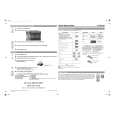
Quick Start Quick start guide ( sometimes called quick guide ) contains most important information on how to use…
|
|
|
> |
|