|
|
|
Categories
|
|
Information
|
|
Featured Product
|
|
|
 |
|
|
There are currently no product reviews.
 ;
- Very good scan quality, PERFECT!
- Sehr gute scan Qualitaet, empfehlenswert!
Wolfgang Sundhaus
 ;
Good site, works ok and you get what you order, no problems experienced, got my manual within a day. A++++
;
Original well scanned manual. Got the job done. Microwave problem found & corrected. For $5 and a new magnitron from ebay, it was a cheap and good the first shot fix. Electrical schematics allowed me to mage sure every thing else was ok before cutting and order for parts. Hard to live without.
;
I was very skeptical of this website, I have never downloaded manuals before. I put it on the AMEX and payed through Paypal to ensure protection. I got the manual exactly as described and now I can replace the filter capacitor for this amp. Great Price, others selling for 12.99 or more and this is the same manual. I will search out this website for other manuals. Thank you
;
Manual was reasonably easy to follow. I am not an engineer or know much about electronics but with the manuals help I was able to figure out the problem, identify the part required for the repair. Replacement part cost around $30. Whilst replacing the part I was telling myself, "this aint gonna work cos it seems far too easy". Took about 15 minutes to do and my plasma TV works a treat. Would never have been able to do this without the service manual.
The operating instructions mentioned here are partial abstracts from the Operating Instruction Manual. The page numbers of the Operating Instruction Manual remain as in the manual.
SECTION 1 GENERAL
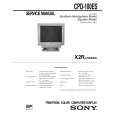
CPD-200ES
Getting Started
Before using this monitor, please make sure that the following items are included in your package: Multiscan 100ES/200ES monitor (1), power cord (1), warranty card (1), "Windows95 Monitor Information Disk" (1), and this operating instruction manual (1). This monitor will sync with any IBM or compatible system equipped with VGA or greater graphics capability. Although this monitor will sync to other platforms running at horizontal frequencies between 30 and 70 kHz, including Macintosh and Power Macintosh system, a cable adapter is required. Please consult your dealer for advice on which adapter is suitable for your needs. Step 1: With the computer switched off, attach the video signal cable to the video output.
Using Your Monitor
Preset and User Modes
The Multiscan 100ES/200ES has factory preset modes for the 8 most popular industry standards for true �plug and play� capability. For less common modes, the Multiscan 100ES/200ES�s Digital Multiscan Technology will perform all of the complex adjustments necessary to ensure a high quality picture for any timing between 30 and 70 kHz.
Adjustments
When one of the preset-type signals is input, no picture adjustment is necessary. You can, however, adjust the picture to your preferences by following the procedure described below. You can adjust all items on the OSD (On Screen Display).
Control Panel
p p
Before adjusting the items, turn on the unit and feed the video signal from the connected computer/work station. Adjustments will be stored automatically.
RESET
COLOR
GEOM
SIZE
CENTER
CPD-100ES/100EST and CPD-200ES/200EST
No. Resolution Horizontal Vertical Graphics (dots � lines) Frequency Frequency Mode 1 2 3 4 5 640 � 480 640 � 480 800 � 600 800 � 600 832 � 624 1024 � 768 1024 � 768 1280 � 1024 31.5 kHz 43.3 kHz 46.9 kHz 53.7 kHz 49.7 kHz 60.0 kHz 68.7 kHz 64.0 kHz 60 Hz 85 Hz 75 Hz 85 Hz 75 Hz 75 Hz 85 Hz 60 Hz VGA Graphic 1) VESA 2) VESA 2) VESA2) Macintosh 16" Color 2) VESA 2)
CENTER
Adjusting the Picture Contrast
The adjustment data becomes the common setting for all input signals.
Adjusting the Picture Centering
The adjustment data becomes the individual setting for each input signal received.
1
IBM or compatible computer to video output
Press the > ?// button. The �BRIGHTNESS/CONTRAST� OSD appears.
BRIGHTNESS/CONTRAST 100 50
1
Press the CENTER button. The �CENTER� OSD appears.
CENTER 32 68
6 7 8
VESA 2) VESA 2)
Apple computer to video output Macintosh adapter (not supplied)
For the customers using the Windows®4)95 Install the new model information of the Sony computer display
from �Windows95 Monitor Information Disk� into your PC. (To install the file, refer to the attached �About the Windows95 Monitor Information Disk/File�.)
3 1 . 5 kHz/70Hz
� 4 �
2
Horizontal frequency� Vertical frequency�
For vertical adjustment Press the ¨ >/. buttons.
This monitor complies with �VESA DDC�, the standards of Plug&Play. If your PC/graphic board complies with DDC, select �Plug and Play Monitor (VESA DDC)� or this monitor�s model name (CPD-100ES/100EST or CPD-200ES/ 200EST) as �Monitor type� from �Control Panel� on Windows95. Some PC/graphic boards do not comply with DDC. Even if they comply with DDC, they may have some problems on connecting to this monitor. In this case, select this monitor�s model name (CPD-100ES/100EST or CPD200ES/200EST) as �Monitor type� on Windows95.
Recommended horizontal timing conditions
Horizontal sync width should be: >1.0 µsec. Horizontal blanking width should be: >3.6 µsec. (Multiscan 100ES)/ >3.0 µsec. (Multiscan 200ES). Vertical sync width should be: < 560 µsec.
2
Step 2:
Attach the power cord to the monitor and the other end to a power outlet.
Press the > ?// buttons to adjust picture contrast. / . . . for more contrast ? . . . for less contrast
The �BRIGHTNESS/CONTRAST� OSD disappears 3 seconds after you release the buttons. To reset, press the RESET button while the OSD is on.
> . . . to move up . . . . to move down For horizontal adjustment Press the > ?// buttons.
Power cord (supplied) to a power outlet
Adjusting the Picture Brightness
The adjustment data becomes the common setting for all input signals.
Step 3: Step 4:
Turn on the monitor and computer. If necessary, adjust the user controls according to your personal preference.
1
Press the ¨ >/. button. The �BRIGHTNESS/CONTRAST� OSD appears.
BRIGHTNESS/CONTRAST 100 50
Note
CPD-100ES/100EST and CPD-200ES/200EST does not apply to Macintosh 21" color mode.
The installation of your Multiscan 100ES/200ES is complete. Enjoy your monitor. 1) VGA is a trademark of IBM Corporation. 2) VESA is a trademark of the non-profit organization, Video Electronics Standard Association. 3) Macintosh is a trademark of Apple Computer Inc. 4) Windows® is a registered trademark of Microsoft Corporation in the United States and other countries.
? . . . to move left / . . . to move right To erase the �CENTER� OSD, press the CENTER button again. The �CENTER� OSD automatically disappears 10 seconds after you release the buttons. To reset, press the RESET button while the OSD is on.
3 1 . 5 kHz/70Hz
Horizontal frequency� Vertical frequency�
2
Press the ¨ >/. buttons to adjust picture brightness.
. . . . for less brightness > . . . for more brightness � The horizontal and vertical frequencies for each input signal received appear on the �BRIGHTNESS/CONTRAST� OSD.
The �BRIGHTNESS/CONTRAST� OSD disappears 3 seconds after you release the buttons. To reset, press the RESET button while the OSD is on.
4
5
|
|
|
> |
|