|
|
|
Categories
|
|
Information
|
|
Featured Product
|
|
|
 |
|
|
There are currently no product reviews.
 ;
Excellent printing quality.
A complete and very usefull service manual with all details.
GREAT SERVICE AT VERY LOW PRICE!
A+++++++++++++++++++++++++
;
Very fast and perfect delivery. Clear and well scanned. A lot of work professionally realized.
Again thak you a lot
 ;
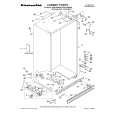
This manual is accurate and of high quality. It is only volume 2 of the service manual. This is schematic, parts lists, and exploded mechanical drawings. The theory of operation and the diss-assembly instructions are in volume 1. The unit can be tricky to dis-assemble portions of so the volume 1 manual can be important. The product description of the manual is accurate but it does not say anything about volume 1 and the image of the front page does clearly say Volume 2.
;
Wellll again thank you very much fast and effective. Clear and well done for such an old TV!!!!
;
It has all the information you will need to fix it. The main circuit diagram is only A4 but being a PDF, you can print it to any size - I did it on two sheets of A3 and it didnt lose any detail - just made it readable when pinned up above the bench. I've found the fault, just need to buy some obscure bits to get it going again!
I cant fault the process, I paid for the manual in the morning and it was ready to download by lunch time.
PREPARATION FOR USE
LANGUAGE SELECTION
If you want to change the language of the on-screen menu, follow the procedure below. 1 Connect the power cord to a standard AC outlet. 2 Press the POWER button to turn on the TV. 3 Press the MENU button so that the menu display appears on the TV screen. 4 Press the CH(annel) � or � button to point to "[ENGLISH]". 5 Select "ENGLISH" or "ESPA�OL" = Spanish by using the VOL(ume) � or � button. 6 Press the MENU button to exit the menu.
PICTURE CHANNEL SET [ENGLISH]ESPA�OL V-CHIP SET UP CAPTION [OFF] PICTURE CHANNEL SET [ENGLISH]ESPA�OL V-CHIP SET UP CAPTION [OFF]
4 Press the CH(annel) � or � button to point to "AUTO MEMO". Then, press the VOL(ume) � button. The tuner scans and memorizes all active channels in your area.
� The TV distinguishes between standard TV channels � When AUTO MEMO action is completed, the lowest �
ADD/DELETE AUTO MEMO
and cable channels.
memorized channel reappears on the screen. When you press the CH(annel) � or � button after selecting AUTO MEMO, the tuner will stop at the memorized channels only.
� The TV may recognize TV channels to be CATV channels
by the receiving conditions. In this case, try AUTO MEMO action again in the fine receiving conditions. [ADD/DELETE FUNCTION] 1) Press the MENU button so that the menu display appears on the TV screen. 2) Press the CH(annel) � or � button to point to "CHANNEL SET". Then, press the VOL(ume) � button.
CHANNEL PRESETTING
NOTE:You MUST PRESET channels BEFORE using CHANNEL � or� button. To preset a channel or to change a preset channel, follow the procedure below. 1 Press the POWER button to turn on the TV. 2 Press the MENU button so that the menu display appears on the TV screen. 3 Press the CH(annel) � or � button to point to "CHANNEL SET". Then, press the VOL(ume) � button.
PICTURE CHANNEL SET [ENGLISH]ESPA�OL V-CHIP SET UP CAPTION [OFF]
3) Press the VOL(ume) � button so that "ADD/DELETE" is selected. 4) Use the CH(annel) � or � button to select the channel you wish to put into memory or to erase from memory. Note: The display will return to the screen in about 10 seconds. Perform "ADD/DELETE" function while this display appears on the screen.
� Press the VOL(ume) � or � button to light up the channel number
PICTURE CHANNEL SET [ENGLISH]ESPA�OL V-CHIP SET UP CAPTION [OFF]
ADD/DELETE AUTO MEMO
in LIGHT BLUE if you wish to add the channel into memory.
� Press the VOL(ume) � or � button to light up the channel number
in LIGHT RED if you wish to erase the channel from memory. 5) Press the MENU button to exit the menu.
PICTURE CHANNEL SET [ENGLISH]ESPA�OL V-CHIP SET UP CAPTION [OFF]
RESUME FUNCTION
If the power fails or is disconnected while the TV is powered on, the TV will turn on automatically when the power resumes.
OPERATIONS
WATCHING A TV PROGRAM
1) Press the POWER button to turn on the TV. 2) Select the desired channel with the CH(annel) � or � button. 3) Adjust the volume to the desired listening level using the VOL(ume) � or � button. 4) Adjust picture controls for a natural looking image. (See "PICTURE ADJUSTMENT".)
PICTURE ADJUSTMENT
1) Press the MENU button so that the menu display appears on the TV screen. 2) Press the VOL(ume) � button so that "PICTURE" is selected. 3) Select the feature you wish to adjust with the CH(annel) � or � button and adjust it with the VOL(ume) � or � button. GAME MODE Set to the most suitable position for TV GAME. [+] : ON [-] : OFF BRIGHT Adjust until the whitest parts of the picture are as bright as you prefer. [+] : increase brightness [-] : decrease brightness CONTRAST Adjust to increase or decrease contrast. [+] : increase contrast [-] : decrease contrast COLOR Adjust to be brilliant or pale color. [+] : be brilliant color [-] : be pale color TINT Adjust to obtain natural skin tones. [+] : greenish tone [-] : reddish tone Notes: � "+" is achieved by pressing the VOL(ume) � button and "-" by pressing the VOL(ume) � button.
� In the above steps, the picture adjustment
SETTING THE SLEEP TIMER
The sleep timer function enables you to shut off the power without pressing the POWER button after a desired time period. 1) Press the POWER button to turn on the TV and press the SLEEP button on the remote control . 2) You may change the sleep time with pressing the SLEEP SLEEP 10 button on the remote control repeatedly. The timer is set up to 90 minutes, 10 minutes each time the SLEEP button is To cancel the sleep timer: pushed. (The timer display counts up and sleep timer will Press the SLEEP button be displayed on the screen when you press the SLEEP repeatedly until "SLEEP 0" button on the remote control.) is displayed. Note: When you disconnect the unit from the AC outlet, or if you have a power failure, the sleep time will be lost.
display will disappear from the TV screen after about 10 seconds unless you press any buttons, even though you may not be finished. Press the MENU and VOL(ume) � button so that "PICTURE" is selected. Then, press the CH(annel) � or � button repeatedly until the display returns to the screen. � If you adjust the other Picture control after you set the Game mode to [ON], the Game mode is set to [OFF] automatically. [USING THE GAME BUTTON] You may also set the Game mode and external input mode at the same time by pressing the GAME button on the remote control. �GAME� appears on the TV screen. � To exit the Game mode and external input mode, press the GAME button on the remote control again. � To cancel the Game mode only, adjust the picture control. In this case, �VIDEO� instead of �GAME� appears on the TV screen. � When you press the GAME button if the TV is off, the TV turns on and will be in the Game mode and external input mode automatically.
CLOSED CAPTION SELECTION
You may view specially labeled (cc) TV programs, movies, news, prerecorded tapes, etc. with either a dialogue caption or text display added to the program. 1) Press the MENU button so that the menu display appears on the TV screen. 2) Press the CH(annel) � or � button to point to "CAPTION". 3) Press the VOL(ume) � or � button to select the mode you wish. 4) When done, press the MENU button to exit the menu.
PICTURE CHANNEL SET [ENGLISH]ESPA�OL V-CHIP SET UP CAPTION [ T1] PICTURE CHANNEL SET [ENGLISH]ESPA�OL V-CHIP SET UP CAPTION [ T2]
: Press the VOL(ume) � or � button.
PICTURE CHANNEL SET [ENGLISH]ESPA�OL V-CHIP SET UP CAPTION [OFF] PICTURE CHANNEL SET [ENGLISH]ESPA�OL V-CHIP SET UP CAPTION [ C1]
PICTURE CHANNEL SET [ENGLISH]ESPA�OL V-CHIP SET UP CAPTION [ C2]
: Press the CH(annel) � or � button.
[-] GAME MODE [+] OFF ON
[-]
BRIGHT
[+]
[-]
CONTRAST
[+]
[-]
COLOR
[+]
[-]
TINT
[+]
|
|
|
> |
|