|
|
|
Categories
|
|
Information
|
|
Featured Product
|
|
|
 |
|
|
There are currently no product reviews.
 ;
High quality scan of the manual, very quick and easy download and very important, a truly honest price. thanks
 ;
Minden rendben, de két megjegyzés, az ábrák nehezen kivehetők és a fizetés után 24 órát kell várni a letöltésre.
;
Manual correct, and complete. Downloads cleanly. Format of manual was presumably difficult to PDF to A4, but works reasonably well.
;
This was a hard to find manual. When I did find it , some sites wanted way too much for the file.
Owner-manual .com had it for a really reasonable price. Not only that but it was sent very quickly and was a quality scanned document, unlike some others I purchased from a different site.
Good job guys!!
Larry
;
Fast and courteous service. Product delivered as described. Thank you.
The GNX4�s 8-Track Recorder
Playing Back a Recorded Track
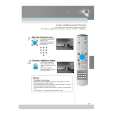
After a track is recorded, playing it back is simple. If you are at the end of the track or the song, press the PLAY button. The recorder automatically begins playing back the track/song from the very beginning. If you want to start playback at the beginning of a track or song but are someplace other than the end of the song, follow these steps:
2. Press the Play button
1. Press the Rewind button
Begin with the Recorder stopped. 1. Press the REWIND button once to move to the beginning of the song. 2. Press the PLAY button. The newly recorded track is automatically armed in PLAY status (the track button is lit green) and the track begins playing back. ATTENTION: Do not remove your CF card or turn the GNX4�s power off while playing back a track or you may lose files.
Recording Multiple Tracks
After a track has been recorded, you may want to record other tracks (overdub) that will play along with it. You will want to play the previously recorded track(s) as a monitoring source while recording new tracks. To add a new track to previously recorded tracks do the following: 1. Press the RECORD button. The next available track for recording automatically lights red, indicating it is armed to record, and the recorder begins recording on this track from the beginning of the song. The TIME display begins counting off the recording time. If Autostop is turned on, the recorder will automatically stop when the longest track playing back is finished. If Autostop is turned off, go to step 2. 2.When recording is complete, press the STOP button.
Setting Track Playback Levels and Panning
After a track has been recorded, you can set the pan and playback level for each track. This is done using the LEVEL and PAN buttons. This feature is most useful if done while the recording is playing back so you can hear the changes as they are being made. To set level and pan controls for each track, follow these steps: 78
|
|
|
> |
|