|
|
|
Categories
|
|
Information
|
|
Featured Product
|
|
|
 |
|
|
There are currently no product reviews.
 ;
This was the Sony CCU-500A Service manual I was looking for.
The price was reasonable.
The permission to download was quck.
I will use Owner-Manual.com for all my manual needs.
;
Excellent printing quality.
A complete and very usefull service manual with all details.
GREAT SERVICE AT VERY LOW PRICE!
A+++++++++++++++++++++++++
;
Excellent printing quality.
A complete and very usefull service manual with all details.
GREAT SERVICE AT VERY LOW PRICE!
A+++++++++++++++++++++++++
;
Excellent printing quality.
A complete and very usefull service manual with all details.
GREAT SERVICE AT VERY LOW PRICE!
A+++++++++++++++++++++++++
;
Excellent printing quality.
A complete and very usefull service manual with all details.
GREAT SERVICE AT VERY LOW PRICE!
A+++++++++++++++++++++++++
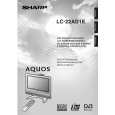
LC-22AD1E
Case B: When the versions are the same between the installed software and software to download 1. Disconnect the antenna cable from the unit. 2. Make sure that the power of the unit is turned off, and insert the flash memory card into the CI slot. 3. Turn on the power. 4. Download the software manually as follows: � Use the buttons on the main unit or remote control to display the process mode screen. � Set �IBO PROG UPDATE� to �ON� and press the �OK� button. Download starts. * Do not turn off the power until the download is complete about 2 minutes. There is no information appears on screen while downloading. When the download is complete, the digital broadcasting receiver unit resets itself and reboots automatically. After it is reset, the display blacks out for approximately 10 seconds, then the information banner appears. * If an error message appears, refer to �Troubleshooting�. � Use the buttons on the main unit or remote control to exit the process mode screen. 5. Check the software version. Follow these menu options: DTV menu -> Setup -> Installations -> Software version. Check that the version matches with the one you wanted to download. 6. Turn off the power and remove the flash memory card from the CI slot. Case C: When the version of the installed software cannot be confirmed If the digital broadcasting receiver unit does not activate properly or enters the download mode immediately after it is activated, perform the following procedure. 1. Disconnect the antenna cable from the unit. 2. Make sure that the power of the unit is turned off, and insert the flash memory card into the CI slot. 3. Turn on the power. Download starts automatically. * Do not turn off the power until the download is complete about 2 minutes. There is no information appears on screen while downloading. When the download is complete, the digital broadcasting receiver unit resets itself and reboots automatically. After it is reset, the display blacks out for approximately 10 seconds, then the information banner appears. * If an error message appears, refer to �Troubleshooting�. 4. Check the software version. Follow these menu options: DTV menu -> Setup -> Installations -> Software version. Check that the version matches with the one you wanted to download. 5. Turn off the power and remove the flash memory card from the CI slot. This is the end of the download process. Notes: � Download takes about 2 minutes. Once the download starts, never turn off the power until the unit is reset automatically, or error message appears. � After the download process is complete, perform the search operation from the menu, if necessary. Especially for Case C in �Procedure�, search (or Reinstall all services) should be performed as there is a high possibility that the service list has disappeared.
37
|
|
|
> |
|